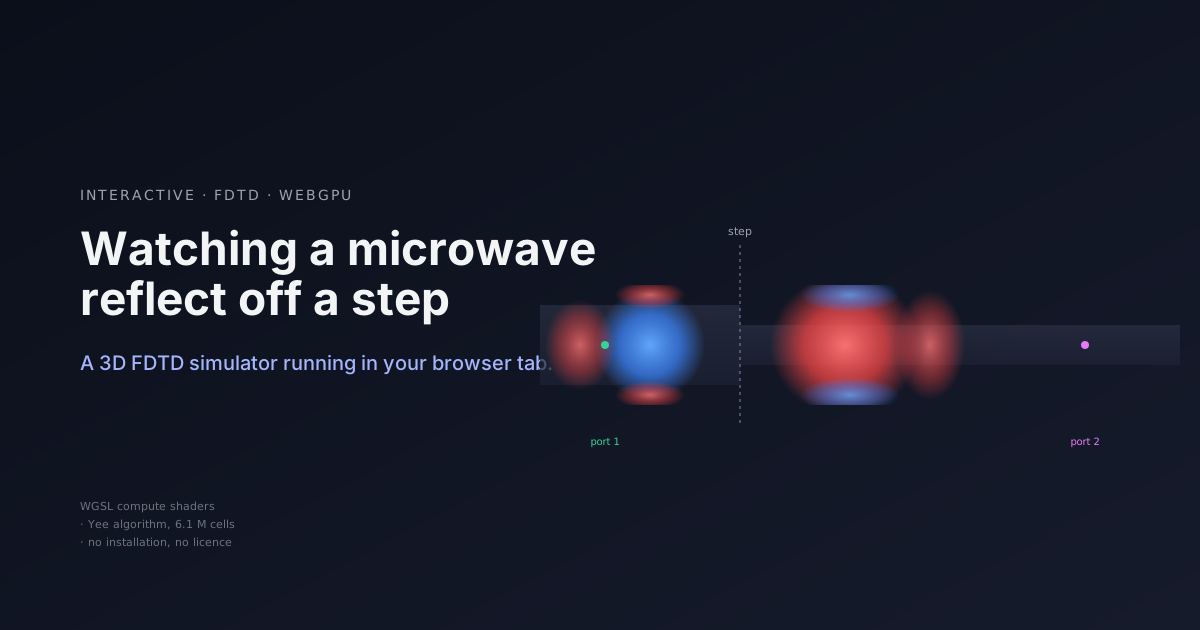
Watching a microwave reflect off a step — in your browser
- Engineering , Physics
- 12 May, 2026
Requires WebGPU. Chrome 113+, Edge 113+, or recent Safari/Firefox builds with WebGPU enabled. If the widget below doesn’t load, your browser likely doesn’t have WebGPU yet.
A few years ago, watching an electromagnetic pulse propagate through a microstrip discontinuity meant downloading CST or HFSS, paying for a licence, owning the right OS, having the right NVIDIA card, and clicking through enough wizard dialogs that by the time the simulation finished you’d forgotten why you’d started it.
Things have changed. The widget at the top of this page is doing a full‑wave 3D Yee‑algorithm FDTD simulation — 480 × 80 × 160 = 6.1 million cells, 8192 timesteps, the works — entirely on your GPU, inside the browser tab you’re reading this in. No installation, no licence, no CUDA. It uses WebGPU, the browser API that exposes GPU compute shaders the same way Vulkan or Metal does natively, but from JavaScript.
This post is a guided tour. I’ll show you what to click, what to look for, and what the picture actually means. There are optional asides for the RF curious (the physics behind what you’re seeing) and the code‑curious (how the thing actually works).
The geometry, in one sentence
A 3.2 mm‑wide microstrip on FR4 substrate (εᵣ = 4.4, h = 1.6 mm) abruptly steps to 1.6 mm, then continues. We launch a Gaussian pulse from the left, watch it propagate, hit the step, partially reflect, and partially transmit into the narrow section. Two probes — one in the wide section, one in the narrow section — extract V and I, from which we compute S‑parameters across 2 to 8 GHz.
The transmission‑line theory prediction for a step from Z₀₁ ≈ 46 Ω to Z₀₂ ≈ 70 Ω is |S₁₁| ≈ −14 dB, |S₂₁| ≈ −0.15 dB. The FDTD agrees within a few tenths of a dB. So far, so unsurprising. The interesting part is seeing it.
Step 1: run the simulation
Press ▶ Run Stage 5 step‑discontinuity test. On an Apple M4 Pro this takes about 40 seconds. On an older laptop, expect 1–3 minutes. You’ll see the wall time appear on the right when it finishes, and a bunch of result panels populate below.
The first thing to look at is the pass banner. If it says ✓ Stage 5 PASS, the FDTD result agrees with transmission‑line theory within the gated tolerance. The Z₀ values in the banner are self‑measured by the simulation from V_peak / I_peak on the incident pulse — not assumed from analytical formulas — so the agreement reflects internal consistency, not curve‑fitting to expected values.
Aside (RF folks): The Stage 5 pass uses ±1.1 dB on |S₁₁|, looser than you might want. The reason is documented in the source: at the coarse default grid the 4‑cell narrow strip has a ~5% impedance bias from the PEC edge singularity. Stage 5b runs the same test at four grids (0.4 → 0.05 mm) and shows the bias closes monotonically — gf = 8 gets |S₁₁| to within 0.5 dB of the HFSS reference. Tightening the tolerance without doing convergence is the kind of move that produces papers that fall over under review.
Step 2: scrub the field animation
Scroll past the metric cards to the Field animation panel. There’s a play button, a scrubber, and (in the default view mode) one heatmap. Drag the scrubber. You’re now watching Ez — the vertical electric field on the substrate‑top plane, the same plane the strip sits on — evolve through 256 captured frames.
The interesting moments are around frame 50. That’s when the incident pulse, having travelled cleanly from x ≈ 4 mm to x ≈ 24 mm in the wide section, collides with the step. Within three or four frames you see two new things appear: a transmitted pulse continuing rightward into the narrow section (slightly faster, slightly more confined in y), and a smaller reflected pulse heading back toward Port 1.
The reflected pulse is about 20% of the incident amplitude — that’s what |S₁₁| ≈ −14 dB means in time domain. It’s clearly visible but doesn’t dominate the picture.
Aside (microwave engineers): Notice the fringing field — the blue lobes above and below the red strip‑band. That’s the Ez return field outside the strip width, the structure that gives the quasi‑TEM mode its name. The lobes are larger in the wide section (more lateral field extension, lower Z₀) and smaller in the narrow section (more confined field, higher Z₀). You’re seeing the geometric reason Z₀₂ > Z₀₁ in a single frame.
Step 3: try a different colormap
This is where most people lose their first ten minutes. There’s a dropdown labelled colormap with ten options. The default is a simple red‑white‑blue that’s adequate but unspectacular. Switch to:
- PuOr for a purple/orange diverging map (visually striking, and designed to work for deuteranopia)
- viridis + sign hatch to encode magnitude in viridis and sign in diagonal hatching (unusual, useful for amplitude precision)
- twotone to try the “deep red for big, pale red for small” idea — the same hue indicates sign, lightness indicates magnitude
There’s also a compression dropdown — how amplitude maps to color. Default is linear, which is physically faithful but makes a −14 dB reflection read as only 20% of peak intensity (faint). Switch to signed‑log to compress the dynamic range so small features pop, or dB‑floored for a perceptually‑uniform decibel mapping where the floor (everything below it appears white) is tunable.
These two axes are orthogonal: any compression curve combines with any colormap, giving 80 combinations. The widget includes two “grid view” modes (all colormaps and all compressions) that let you compare combinations side‑by‑side at the same instant in time.
Aside (general technical): This is genuinely an unsolved visualization problem. CST and HFSS face the same issue — signed amplitude with 3 to 4 decades of dynamic range has no canonical colormap, so commercial tools punt and give the user sliders. We’ve collected eight perceptually‑different compression curves and ten colormap families, including some less‑common ones (PuOr, twotone), but the right combination depends on the data and the audience. The grid views let you build your own intuition rather than trust an unjustified default.
Step 4: rotate the 3D surface
Below the heatmap, in single‑view mode, there’s a 3D landscape rendering of the same data. Same compression, same colormap, but height is now signed Ez amplitude. Drag with the mouse to rotate. Scroll to zoom.
The 3D view answers a different question than the 2D heatmap. In 2D, you see where the field is; in 3D, you see how much — the peaks and valleys are literal mountains and trenches. When the reflected pulse separates from the transmitted pulse around frame 60, the 3D view shows it as two distinct, smaller landscape features moving in opposite directions.
Aside (code‑curious): The 3D surface is Three.js — a WebGL renderer creating a 480 × 80 vertex plane geometry that gets its
y(height) and per‑vertex color updated in JavaScript each frame. The same compression + colormap functions that draw the 2D heatmap drive the 3D surface, so the two views stay perfectly coherent. The whole thing is twouseEffecthooks in ~250 lines of JSX.
Step 5: read the legend
Below the heatmap (and below each panel in grid views) there’s a colorbar with five numerical tick labels. That’s the actual amplitude scale, in V/m or mV/m depending on magnitude.
This sounds trivial. It is not trivial. Commercial EM tools routinely show colormaps without labels, and you spend hours wondering whether what you see is volts per metre or microvolts. The legend updates live as you change compression, colormap, or clamp. Whatever colors are showing, the gradient and the numbers under it are always consistent.
What’s actually happening, technically
If you’ve ever run an FDTD simulation locally, you might wonder how 6 million cells × 8000 timesteps fits in a browser tab. The answer is the same one that GPU vendors discovered around 2010: the Yee algorithm is embarrassingly parallel. Each cell update depends only on its immediate neighbours; there’s no global linear system, no sparse matrix, no global solve. It maps onto a GPU compute shader the way water maps onto a bucket.
WebGPU — stable in Chrome since 2023, now in Safari and Firefox — exposes that compute model from JavaScript. The same Yee update equations that have served electromagnetics since 1966 run as a WGSL compute shader, dispatched 8192 times. The host JS just orchestrates: writes uniforms, launches dispatches, reads back results.
The interesting design constraint is WebGPU’s default eight storage buffers per shader stage. A naive Yee setup wants more than that (six field components plus masks plus materials). We pack the three E components into one buffer with component‑major layout, same for H, same for the PEC mask — getting down to seven bindings with one to spare. That’s the architectural trick that makes the whole thing fit.
Where this is going
This widget is one stage in a longer chain. Stages 1 through 4 validate the building blocks: plane‑wave propagation, perfect‑conductor reflection, perfect‑magnetic‑conductor reflection, Mur absorbing boundaries, microstrip Z₀ extraction, matched‑line S‑parameters. Stage 5 — what you’ve been playing with — is the first non‑trivial two‑port test. Stage 5b runs the same test at four grid resolutions and cross‑validates against Ansys HFSS 2026 R1; the agreement is within 0.5 dB on |S₁₁| and 0.07 dB on |S₂₁| at the finest grid. Stage 6 (the gap discontinuity, where most of the energy bounces back) is in progress.
The whole thing is a working draft for an IEEE Antennas and Propagation Magazine paper on browser‑native full‑wave EM. The aspiration: replace some of the “go install CST” friction with “click a URL.” Not for production design — for teaching, for early‑stage exploration, for interactive content embedded in technical writing, for the moment you’re trying to explain a discontinuity over coffee and you want to point at a picture.
The picture, in this case, you can scrub.
If you found this useful, consider supporting my work
Tags:
- Fdtd
- Webgpu
- Microstrip
- Electromagnetics
- Rf
- Simulation
- Visualization
- Interactive